Archive for the ‘Assignments’ Category

Redesign Team Jacki and Claire: G11 Powershot

Project UX Design Team

The subject: Canon’s G11 Powershot Navigation and Interface Screen

Getting Started

Tackling the digital camera interface redesign was quickly noted to be a massively overwhelming task. We’re all camera users, but who’s to say who’s the ultimate camera expert? The number of menus is ridiculous and the complexity of control levels is huge.

How does one even begin redesigning an interface with so many nuances and details and varying uses for a single product?

Answer: Research, Research, Research

User research began, I think, with the intent of figuring out which features people liked and needed the most so we could focus on parring down, redistributing menus, and adjusting the G11’s target audience to allow for streamlining content. But research is always telling, and much to our dismay, it seemed that many people like having so many features available because everyone wants their features.

Here’s a few of the sites you can check out to see how diverse people’s needs and responses truly are:

Canon’s own user review access.
CNet’s review of the Canon G11.
And don’t forget Amazon’s huge access to user reviews.

Also, here’s an excellent introduction/tutorial on the particulars of the Canon G11. Though it’s interesting to note that even as he promotes and praises the camera, even he’s fumbling with the controls and navigation throughout the demo.


Eventually, we found that our research actually helped refocus our goals into a much less daunting task. After all, we certainly aren’t in the position to dictate people’s feature abilities when we’re certainly not the almighty camera experts. Instead, we redirected ourselves on a new route to celebrate the diversity of camera uses and photographer quirks – customization.

Planning the attack

Turns out, Canon does have a menu customization ability (notice that star tab on the first image?), but no one seems to know it exists or how to use it. Our job was to make it front, center, and the main mode of menu setting selection. But there was more than just making it the first tab in the list. Who wants to waste time manipulating settings on a tiny screen with only a scroll wheel for movement control?

Enter the computer and iPad set up interface for inspiration.

You already connect your camera to the computer – it’s digital after all. Why not use that to automate customization and allow the user to work from the comfort of their monitor and mouse instead of inside the cramped camera?

A comparison of the current and proposed task flow charts shows a bit of extra time with the initial set up and customization, but its still a pretty streamline process. And ultimately, we’re trying to eliminate that circular, repetitive motion of even trying to find a particular setting, as well as the frustration of options you have no clue what to do with.

Plus, by dropping the “quick access” buttons inside the custom menus, there’s less physical camera bulk and space to enlarge the LED screen size – both of which were explicit complaints about this model.

And once you’ve gone through that first time set up, your menus are all there any time you shoot. You’d only ever revisit those steps if you chose to, so really, there are less steps in the long run.

Design Layout

The final designs ended up being strikingly simple in comparison to what originally appeared to be a daunting task.

The computer interface is a single pop-up screen that initiates when the camera is plugged in. Setting choices are organized on the right in a folder-like set up that can expand or contract as desired, and the user simply drags the desired settings to the camera screen at left. Folders can be added or deleted for organizational needs and settings can be removed from the custom screen simply by clicking the red X button. Sync the screen to your camera, and you’re done.

The camera itself got a major button reduction, a larger touch screen interface for increased visibility and mobility, and your custom setting menus are the first tab in the list. Oh, all the original screens are still there, in the receded tabs just in case you find out on the go that you forgot something. It’s more like a shortcut menu – for the shortcuts you want – rather than a specialized function camera.

Still, the design is simple, with only a few basic parts, that maintains the look and current appeal of the Canon brand design. We’re not trying to scare anyone here – just smooth out the process. It’s just that now your camera can be set up the way you want it set up – not the way some overseeing digital camera god-figure wants it set up.

Team Awesome; Kyle, Christina and Claudia Group Design Interface

For the second project we were given two weeks to come up with an interface problem, identify it, think of a solution, and design a new interface.

Our group decided on the MetroTransit’s schedule at bus stops.

The first step was to do research on our topic. We all took the weekend to go out and gather information about bus riding, how bus stops showed bus times and what buses came by, and also to get photographic evidence. We came together that following Tuesday and shared our information and started right away into our task flows and wire frames. We presented what we had to the class, got critiqued, and got back together to make better wire frames and task flows.


Coming up with a task flow was the most challenging part of this project. I (Claudia) being the experienced bus rider could think of how it was to ride a bus and how one goes about figuring out bus schedules.

Current Task Flow

Changes to Task Flow

The idea we came up for an interface besides a piece of paper to see bus schedule was something that resembles a Mac product. Very clean, very designery, very simple and easy to use. Our wireframes were for something that was a touch screen and would be a stand. After meeting up over the weekend and working together for the essiential design we had another presentation just to show our progress thus far.

After presenting what we had we went more seriously into the design and finalized everything. Our final product turned out looking very sleek, very simple, and user friendly.

Another tuesday comes and goes…

TED TALKS TUESDAYS!

Tuesday’s always bring a fresh TED talk featuring interesting “ideas worth spreading”. This week’s TED talk, featuring Seth Godin, was especially applicable. Godin spent a large majority of his “talk” being our tour guide to “broken things” and making them unbroken. He pointed out humorous and often poorly designed public service announcements and warning signs. He also points out seven reasons that he believes the designs don’t work. I liked his third point which was that the design could be broken because things changed in between the time it was designed and the time the design got used. Our world (particularly where technology is concerned!) is fast paced and it can be a struggle to keep up. Designs should be made to last. Godin’s energy and enthusiasm was refreshing and I found myself wishing his talk was a bit longer – which would have also given him time to explain more fixes for broken things. In my google searching, I found that on Seth’s Blog he wrote,

“I did this talk about three years ago. I have to admit that very little in the way of progress has occurred.”

Well, I suppose it might finally be time to change this.

This TED talk was worth the second viewing and I would highly suggest that if you liked it the first time, you give it a second go. His list of seven reasons why the designs don’t work are good to remember.

Additionally, the website that Seth Godin mentions gives even more examples of poor design. Ironically, the design of the website isn’t totally appealing and comes off a bit boring.


However, I do recommend the content for its entertainment value as well as more of Godin’s unique talking/writing style. In viewing this website, I also realized that it functions much like the journaling work we’ve been doing with designs that are working and not working. For example, one person wrote in to criticize the design of the Chevy Impala’s AC design.

“At night, this is very readable and easy to see.  However, during the day, the blue LED is very hard to find in all the chrome reflections – it takes a concentrated effort to tell where the dial is pointed.” – Doug Shaefer

ARE YOU INDISPENSIBLE?

I also looked a bit further into Seth Godin’s work and found that he wrote a book called “Linchpin: Are you Indispensable?”

The description of the book says that it is more than a how-to, but rather that it pushes you to see things differently and make changes. Godin said about this book:

“a linchpin is the essential element, the person who holds part of the operation together. Without the linchpin, the thing falls apart.”

Not so surprisingly, this got me thinking about the UX Design Team Projects that we are currently working on. I don’t mean to get sappy or sentimental, but I think it is important to remind ourselves that we are each a linchpin in this project. Each one of us has a distinct role in the assignment and we are not as interchangeable as we may seem. Group projects can often be stressful and cause us to crave a temporary coma allowing us a grace period in which we don’t have to complete the assignment and can leave our group members to do it. That being said, the group presentations this week of the work done so far showed some excellent ideas and a really interesting dynamic in each group that I’m excited to keep up with.


IN CLOSING

Phase two of our UX Design Team project is upon us which means task flows, wireframes, and design brainstorming are all due. Thank goodness we already know how to do these things. Good luck to everyone !

3 might not have been the charm

3rd class

Recap:

Tuesday’s class was still a little bit of feeling out in exactly what is wanted of us, and what we think of it.

Class started with a TED video hosted by the kids across the hall.

The video brought up some very cool and vaguely creepy ideas about where usability might be headed for something like a map application.  I’m not so sure that I would like to be in a store somewhere and have someone call me saying that they were watching me pick out toilet paper at target.  I’m not sure how much use the app has if you need someone with a camera and GPS in order for the live video functions and things to work.  It’s a good idea, but I remain skeptical- and not just because I heart google maps

Critique:

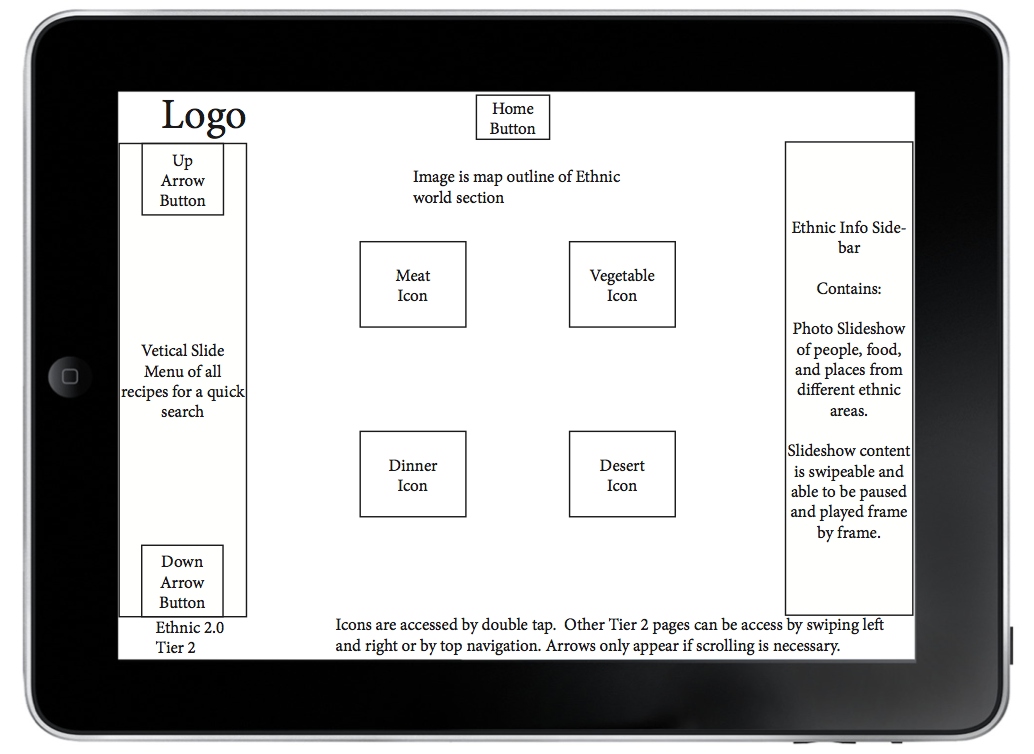
We also had a critique of our personas and Ipad app wireframe first drafts.  Some of the personas were very creative and informational.  The image below is a screen shot of mine.


There was a wide range of ideas and approaches in the wireframes.  I kinda got the feeling that a lot of us were not exactly sure what the assignment should look like, but through that helpful critique, I for one feel like I have a much better handle on it.  Here’s a sneak peek of one of my revised wireframes.


I know that Maggie’s gonna say I told you so, but researching the apps and watching the videos of people playing with them kinda makes me want an Ipad.  I had better stay out of the Apple store.

Journals:

We all had a chance to share what he had done so far for our usability journals, amazingly enough for a web class, no one has yet to bring in a journal entry on a website.  I’m sure however that will change.  In fact I would bet money on it.  You should bet money on it as well.  I’m not kidding, call Vegas, find out what the line is- I’ll wait….
Okay, enough waiting.  If you were smart enough to follow my advice, you just won a boatload (I only want 10% for the tip-off).  My journal entry for this coming week is probably the most horribly amazing website that I’ve ever seen.  The screenshot does not do it justice, follow the link and get ready to go insane in the membrane- insane in the brain.


Screen shot of Hosanna1.com website

http://hosanna1.com/
I have no clue what this site is for, or how to navigate it.  I would be scared to meet the person that could actually figure it out.  A friend sent it to me and the designer in me figuratively threw up on the floor while the rest of me was on that same floor laughing my ass off.  You can randomly click around the site to get to other almost as horrifying sites.  There is so much wrong with this that I’m not even sure where to begin- lack of navigation, no pathways that the eye can easily follow, a giant Afghan hound with angel wings, or the “we love smoking and don’t heart immigrants” banner.  The disconcerting snowflakes that wander down through the screen definitely do not help matters.

Lecture Fun!!

Eye-tracking:

While Liina was talking about the concepts that we are reading about in the texts and introducing one of the mini-assignments for tomorrow she played a couple of eye-tracking Youtube videos that I thought were extremely cool.

Screen captures of youtube videos:  Eye Tracking Demo, Eye Tracking video of a User using the IKEA Website

http://www.youtube.com/watch?v=lo_a2cfBUGc&feature=related

http://www.youtube.com/watch?v=xKdOMgu0C5Q&feature=related

F-Pattern:

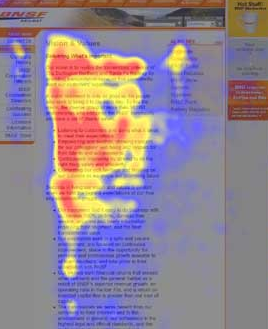
She also showed us an F-Pattern heat test image that shows thermally what the user spent the most time looking at.  It’s funny how the eye never even made it over to the adds on the right side of the screen.  It’s like reverse Pavlovian training- we hear the bell and look away.

Screen shot from useit.com

Hierarchy:

We learned that hierarchy is all around us- much more than some of us want.  The definition of hierarchy is: a system or organization in which people, groups, or things are ranked one above the other according to status or authority.

There are many examples of hierarchies.  Some, (like the one headed by the guy below) have absolutely no bearing on web design.

Image from BBC.UK.com

Other “web-based” examples of hierarchy are:

Things that pop out at you-

Altered image of clip art fist

Things that are logically placed-

Image from bigstockphoto.com

And things that are nested-

Image from ornithology.com

Conventions:

(Not the kind that middle-aged boat salesmen go to)
Conventions are things that are the ways in which something is usually done.  In other words buttons are expected to look like buttons.

Image from wpromote.com

Remember to make it obvious!!

Assignment

(Happy Happy! Joy Joy!!)
Journal- keep find the things you love or loath.  We desperately want to know why!

Revise your wireframes and personas

Read:  Unger/Chandler- Chapters 10 & 11, Krug- Chapters 2 & 3, and Saffer- Chapter 1

Study for the quiz

Test out 5 IPad apps and find 5 examples of hierarchy and 10 examples of convention

Have fun with all of it

Life Shattering Impactful Conclusion

Other than learning that life is moving way to fast for an old man like me, that you can now get live creeped on by someone trying to find the nearest Aldi’s, and that there are way to many peaking orders for the good of me- there was not a whole lot that inspired me in this particular class.  I have learned that design work seems to be a lot less about my brilliant ideas than about what people actually want.  Research is word of the day.  See- it says so below.

Word of the day:     Research

iPad PSD Template Download

A good set of tools to help you get started once we get into design.

http://www.teehanlax.com/blog/2010/02/01/ipad-gui-psd/

iPad Screen Template for wireframes

http://wareground-tech.blogspot.com/2011/01/moshi-ivisor-ag-and-ivisor-xt-screen.html

Our Very First Class.

Our first Principles of Usability class started with introductions. First we were introduced to the Syllabus. Don’t forget about the quiz every Thursday! Then some of us were reminded that we weren’t quite done paying for the semester we still had to purchase some books, a 1” three ring binder, post its, and some pens.

If you haven’t had a chance to get your books I found some quite cheap on Amazon…

After leaning about the class and each other we had to tell the WORLD! We created our first blog post. We had a little trouble with the blogging website, maybe it could have been a little more user friendly. And that brings me to our first discussion. Since the title of the class is Principles of Usability we talked a little about what the meaning of usability is. This brought up the user and how one may interact with designs. It should be easy for the user to navigate through a website or to follow directions. It is what creates good design. For example, I was wandering around Target between classes for a few grocery’s and it was not till I left that I noticed how easily I found everything. Maybe I didn’t notice because I was on the phone the whole time and trying to remember what coupons I had. So I guess that’s what its designed for, you can be careless and shop with ease.

We then chose a few items that we felt could be designed better- such as remote controls and gas pumps. The group that chose the gas pump said it was hard to handle, sometimes confusing, and could be made more convenient for the customer.

Claudia Poole

Age: 20

Name Origin: My real name is Chole, named after coal, since it’s used to heat up  metal for sculpting molds. My mom named both me and my twin after art elements that relate to my dads profession. I just don’t like it, so I go by Claudia.

Home town/current location: North Minneapolis

Online activities: Facebook, youtube,  and tumblr

Offline activities: Biking, cooking, sleeping

Bio: Grew up with art, loved art, wanted to do art for a living. My father John Poole does sculpture, mother Nancy Poole dabbles in the arts but has a different profession. Twin sibling Smyth, older sister Cassie, both do non-art related majors. Went to F.A.I.R., liked the media art classes. High schools I attended were Patrick Henry and Main Street School of Preforming Arts. Toured colleges (MCAD, CVA, AI) and fell inlove with CVA. I love designs on shoe boxes, wrapping paper, wall papers, and decorative elements to packages or company identities.

3 Useful items I interacted with today: Chrome Bag (affectionally called Phillip), bus card, and my planner.

Adam

Thinker

Doer

I’m 31 (which is the new 21).  Hailing from St. Cloud, but now residing in the heart of suburbia Eagan, I am very glad to be a resident of the Twin Cities.  After gaining valuable years of life experience in areas such as saint, sinner, prophet, and roustabout- I taught myself to draw and decided that the world would be a terrible place without my graphic input.  This epiphany lead me to CVA, from which I hope to stake my claim in the world of graphic design.  I’m a libra who enjoys long walks on the beach, heart-felt conversations about drapery, and Sally Jesse Raphael.  Kidding- I’m actually a newborn snowboarder, like to exercise, tease people, and hang out with friends.

Welcome

Starting on January 18, 2011, the Principles of Usability class at the College of Visual Arts in St. Paul, Minnesota will be meeting every Tuesday and Thursday evening. Each student will be taking turns recapping our class on the blog. The class will meet almost 30 times, and the class is about 10 – 12 students. So we’ll hear from each student 2 or 3 times. These posts will be graded, and should contain the following:

• Title

• Introduction and overview paragraph (What did we do?): Topics covered, Class activities, etc.

• Visual examples of the topics covered in class discussion. Be creative! (5 minimum)

• Conclusion: What the author truly learned, or was inspired by during today’s class, and explain how this will apply to their work as a designer


Other Requirements (only follow if you want a good grade):

• Use of subheads and attention to “scan-ability”, i.e. Keeping paragraphs at a desirable length, using helpful subheads

• Blog length of at least 500 words, but not more than 1,500

• Crediting visual examples if taken from another source, and linking to them

• Use of Categories and Tags that pertain to the subject matter

• Correct spelling and grammar — this will affect your grade

• Reference Smashing Magazine’s blog posts, and other well-known blogs. We will discuss what makes a good blog post, and who’s assigned to what blog.


Design a site like this with WordPress.com
Get started